Connect an app to AI Hub
These instructions connect Open Interpreter to the Hub's model API. The screenshots show Interpreter's model settings. AI Model Connections inside the Hub are the providers the Hub calls, such as Ollama; MCP servers supply tools through a separate connection.
1. Create and enable the Hub identity
- Sign in to the Hub account with access to your local Ollama AI connection.
- Open Agent and Access, select Add client or agent, and name the identity Open Interpreter.
- Ensure Enabled is on. For local models, leave Local only on and cloud access off.
- Under the allowed model routes, explicitly check
private-hub-auto. Assign at least one enabled local AI connection, such as Ollama. Both permissions matter: an unassigned route returns HTTP 403 even when the key is valid. - Save and copy the newly displayed
pah_agent_…key. It is shown once. If it is lost, rotate the key on this identity and use the new one in Interpreter.
For model replies alone, you do not need to assign memory, email, calendar, Vault, or MCP tools.
2. Pick the correct Interpreter option
- Open Interpreter → Settings → Models → New Model.
- Select Custom API from the choices shown below. On the form, the provider is API.
- The Local (Ollama / LM Studio) option expects Interpreter to talk to Ollama directly and may show Could not verify Ollama at this endpoint when pointed at the Hub. Use Custom API for this Hub connection.
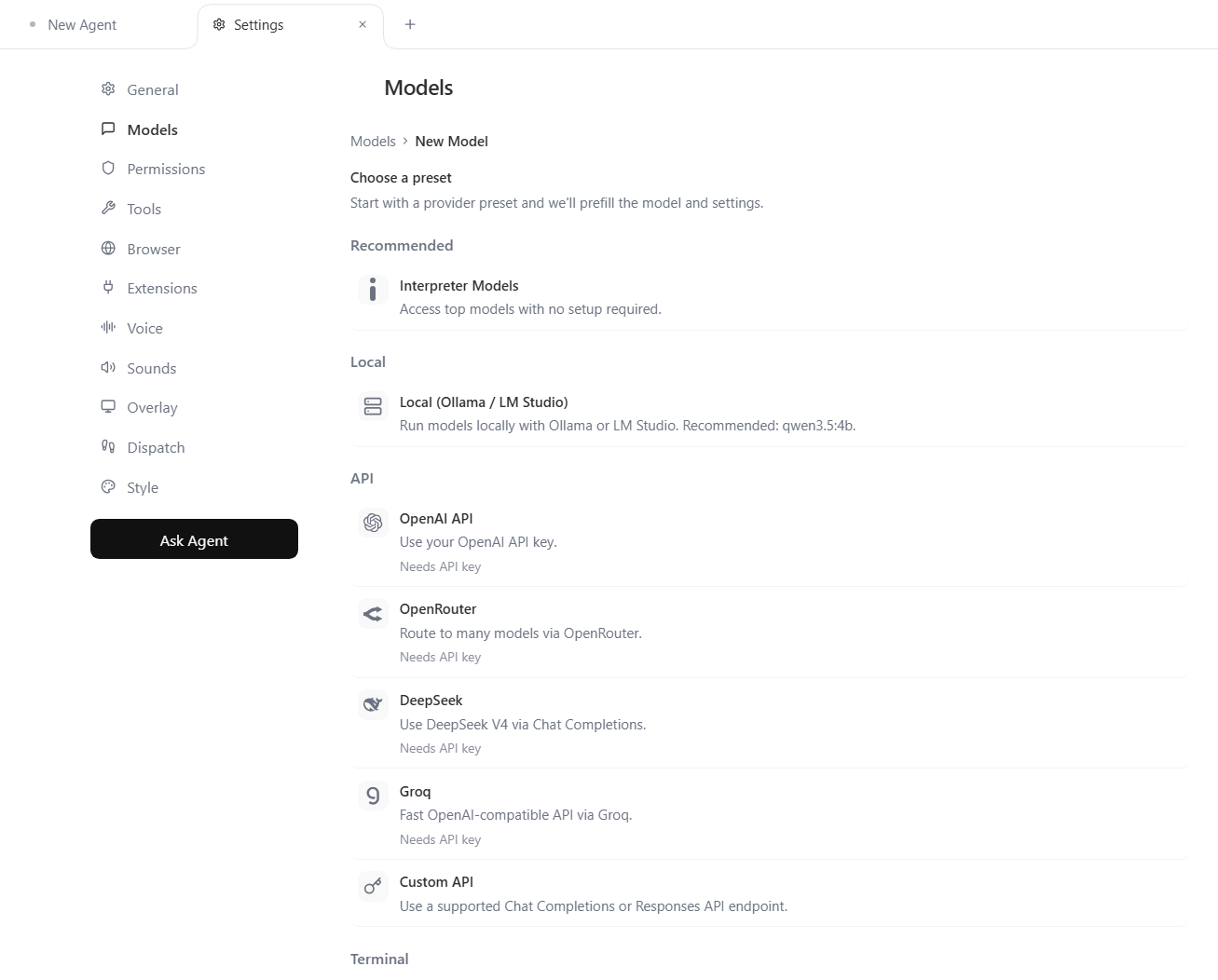
Why the Local option did not work
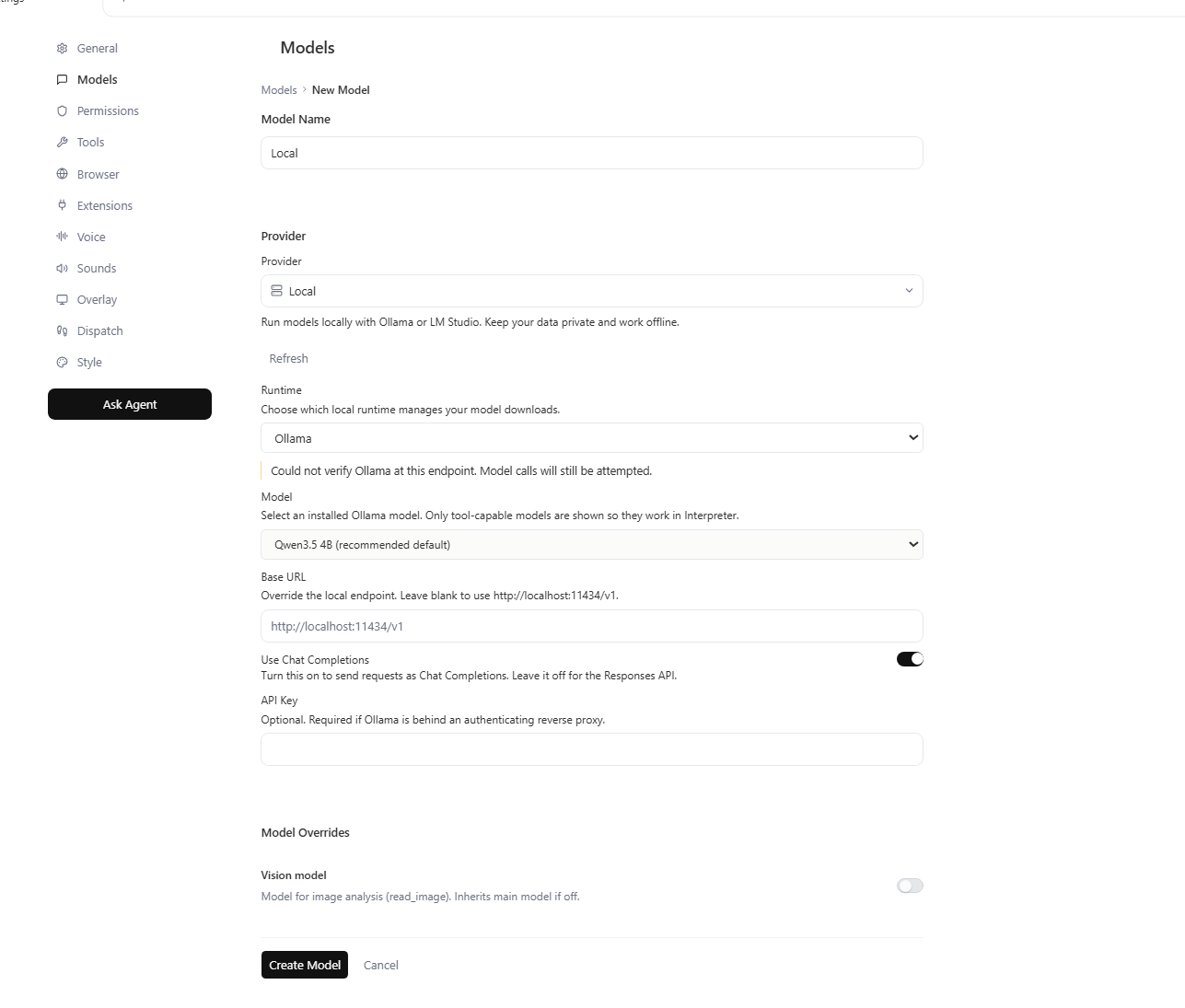
localhost:11434/v1, which refers to the computer running Interpreter. The Hub uses a separate HTTPS API address.3. Enter the working profile settings
On the API form, change the Base URL dropdown from the example OpenAI selection to Custom endpoint. Replace the example URL, key and GPT model with these values:
| Field | Value |
|---|---|
| Model Name | AI Hub — a label shown in Interpreter. |
| Provider | API. |
| Base URL dropdown | Custom endpoint. |
| Base URL text field | https://aihub.mini.bebz.net/v1 — keep the /v1 suffix. |
| API Key | The enabled Open Interpreter identity's pah_agent_… key. Paste the complete key, without Bearer or surrounding quotes. |
| Model ID | private-hub-auto (exact spelling). private-auto-hub is a different, invalid name. |
| Use Chat Completions | On. The Hub offers /v1/chat/completions, not a Responses API endpoint. |
| Vision model override | Off for the first connection test. |
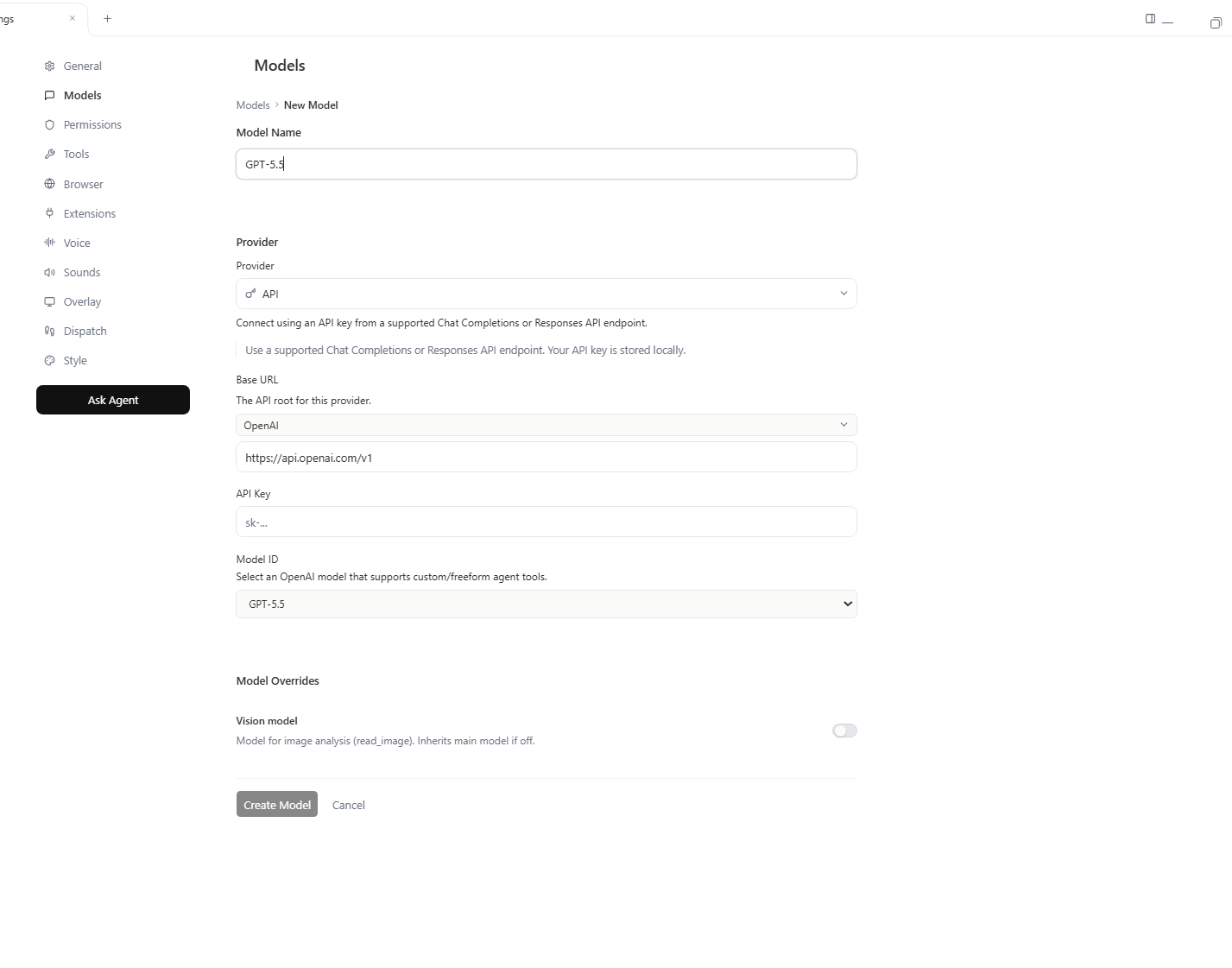
api.openai.com and GPT model; replace those values using the table. Scroll to Use Chat Completions and switch it on before saving.Select Create Model or Save Changes, select AI Hub as the active model, and start a new chat. Ask: Reply with one sentence confirming this model is connected. Once that works, try a read-only Interpreter tool task in a folder you choose. Interpreter executes approved computer actions on its own machine.
4. Resolve a failed connection
- HTTP 401 / API provider authentication failed: Check that the Hub identity and its owner account are enabled, the saved Interpreter profile uses Custom endpoint, and its complete current
pah_agent_…key is entered. - HTTP 403 / This agent is not allowed to use that model alias: The key worked. Edit that agent identity in Hub → Agent and Access, check
private-hub-autounder allowed routes, verify the local AI connection is assigned, and save. Confirm the exact Model ID in Interpreter, then start a new chat. - Provider URL does not support Responses API: Turn Use Chat Completions on in Interpreter and save the model.
- No enabled private model connection: Assign an enabled local Ollama AI connection to the agent, then test it in the Hub.
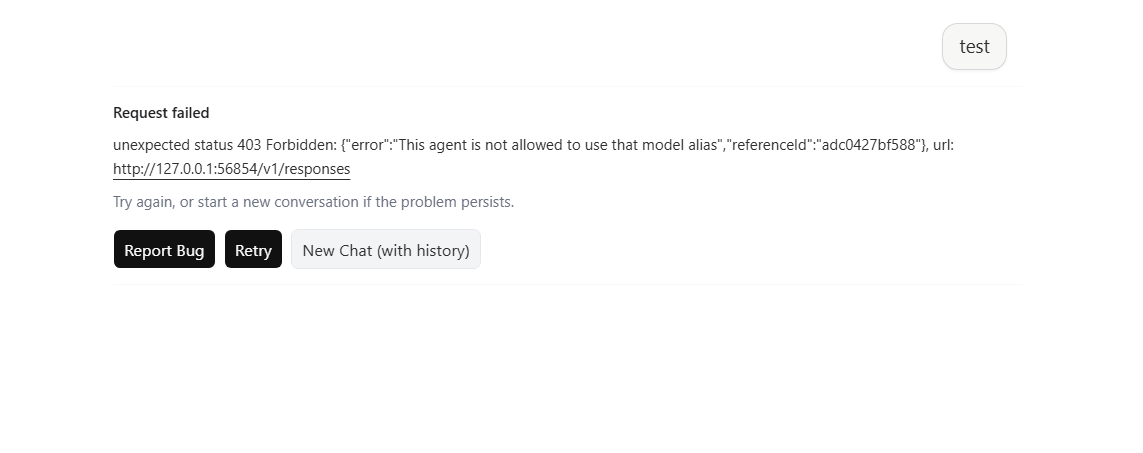
private-hub-auto in the agent's allowed routes. The local 127.0.0.1 address in Interpreter's error belongs to Interpreter's runtime; the Hub's error message identifies the permission to fix.To check the key independently, call GET https://aihub.mini.bebz.net/v1/models with Authorization: Bearer YOUR_AGENT_KEY. HTTP 200 confirms the key is accepted; it does not mean every model route is assigned. The list can contain many models, so a route missing from the first 20 results might still appear later. Never share the key in screenshots or messages.
Open WebUI and other compatible clients
For Open WebUI, add an OpenAI-compatible connection. Use https://aihub.mini.bebz.net/v1, a separate enabled agent key with its allowed routes and connections, and a model ID returned by /v1/models. Each client should have its own key so access can be changed independently.
Optional: MCP tools for an agent
- In the Hub's MCP servers section, add the tool provider using its exact URL. Test it, discover its tools and approve only the tools the Hub is allowed to expose.
- Edit the agent identity in Agent and Access. Assign the server and the specific approved tools it may use. Keep write operations subject to approval unless you explicitly decide otherwise.
- If the client supports Streamable HTTP MCP, add
https://aihub.mini.bebz.net/mcpseparately, authenticating with the same agent key. Keep the model provider URL athttps://aihub.mini.bebz.net/v1.
Assigning MCP tools in the Hub does not automatically expose them through Interpreter's model profile. Configure a supported Interpreter MCP client separately from the AI model.